

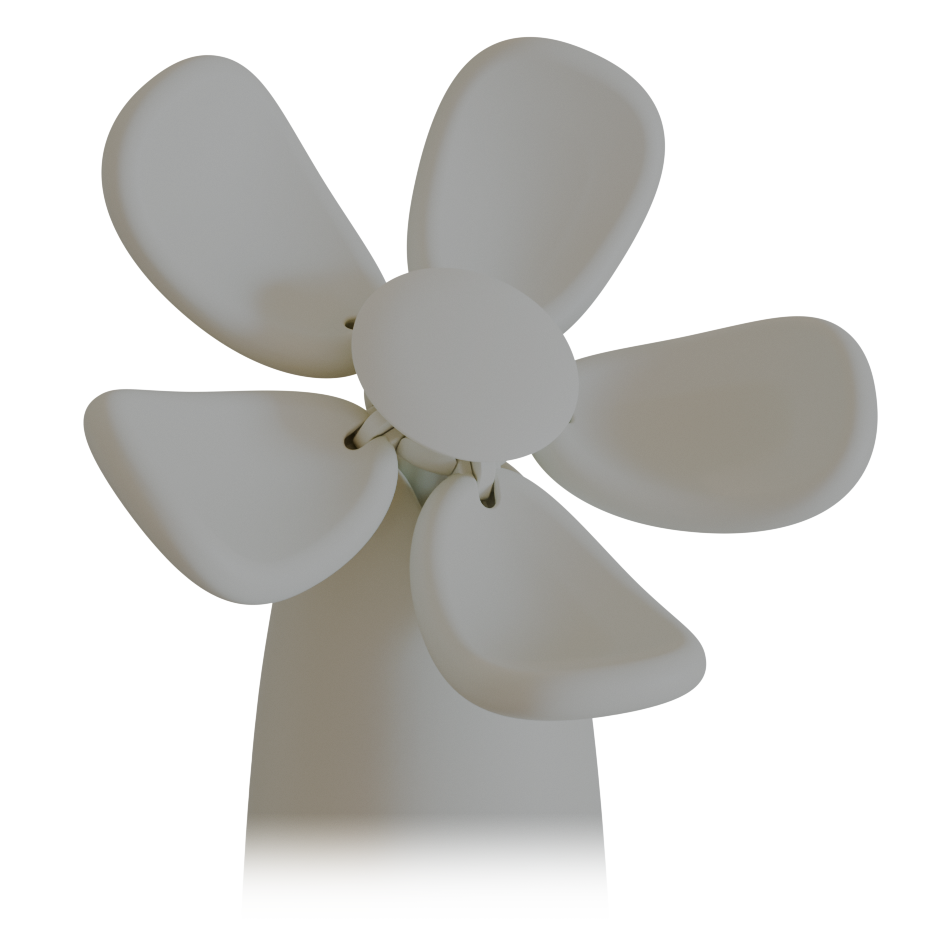
Meet your companion app
Meet the
BLOOMIE app.
Download BLOOMIE for your phone.
Choose your store or scan a QR code to get started.
- App StoreFor iPhoneDownloadScan to download
- Google PlayFor AndroidDownloadScan to download
- AppGalleryFor HuaweiComing soon

A physical BLOOMIE device is required. AppGallery availability is coming soon.
BLOOMIE guidance
User manual
Set up your device. Make it yours. Understand your room.
Meet BLOOMIE
BLOOMIE responds to your room through movement and light. The app shows carbon dioxide (CO2), temperature and relative humidity, and lets you choose how your device reacts.
Use this guide to set up your device, manage its settings and understand its signals. Button names match the English app. Features and availability can vary with the app, firmware and cloud service available for your device.
Keep this guide handy. The QR code on your packaging takes you to abound-china.com/bloomie/download, the permanent place for app availability, the user manual and troubleshooting.
Before you start
- Have your BLOOMIE, its intended power supply, a compatible phone with Bluetooth, and your Wi-Fi name and password ready.
- Place BLOOMIE on a flat, non-slippery surface with clear space around its moving parts. Keep fingers and objects out of the moving mechanism.
- Keep the device dry. Disconnect power before cleaning the exterior with a soft, dry cloth. Do not force the mechanism or open the enclosure to troubleshoot it.
- Use the power supply specified for your product. If power requirements are unclear, contact support before connecting another supply.
Scan the packaging QR code to find the official app links. If a store is marked Coming soon, its download is not available yet. Return to the same page when it launches.
For setup, enable Bluetooth and allow the app’s Bluetooth/nearby-device permissions. Allow local-network access when requested. The current setup form requires a Wi-Fi password of at least eight characters; passwordless networks cannot be configured through that form.
Create your account
- Open the BLOOMIE app. Tap New to Bloomie? Create an account.
- Enter your email and a password with at least 10 characters, including an uppercase letter, a lowercase letter and a number. Tap CREATE ACCOUNT.
- Open the confirmation email. Enter its code in CONFIRMATION CODE and tap CONFIRM EMAIL. If necessary, choose Send a new code and use the newest email.
- When your account is ready, return to SIGN IN and enter your email and password. My Bloomies is your home screen.
You can choose Continue without an account on the entry screen for local use. Sign in and link your device if you want account-linked remote readings or supported phone notifications. Guest use does not itself turn off the device’s cloud connection.
To reset your password, select Forgot your password? on the sign-in screen, request a reset code, then enter that code and a new password. After UPDATE PASSWORD succeeds, sign in with the new password.
Connect your first BLOOMIE
- From an empty My Bloomies screen, tap GET STARTED. Read Make room for Bloomie, place the device with room to move, and connect power. Tap NEXT.
- At Press and hold the button, hold BLOOMIE’s physical button for three seconds, then release. A blue/blue-green light rotates around the ring. Tap NEXT.
- Tap Scan for available Bloomies. Select your device. If more than one appears, compare the identifier suffixes and keep only the intended unit in pairing mode.
- Select your Wi-Fi network. For a hidden network, choose Hidden network or enter manually and enter its exact name.
- Enter the Wi-Fi password and tap Connect Bloomie. Keep your phone nearby while it connects. A successful physical-button setup gives two soft blue completion pulses.
- Choose a recognizable name, such as Living Room, and a matching color theme. Tap Add Bloomie to save.
- Open the new card. With the phone on the same network, the device should connect locally and begin showing readings. In Account, check that cloud connectivity is enabled if you signed in during setup.
A short button press does not start pairing. Another three-second hold, followed by release, cancels pairing. An idle pairing window closes after about 60 seconds; scanning or joining can extend it. If it closes, hold the button again.
Find your way around the app
| Where | What you can do |
|---|---|
| My Bloomies | See your devices and their latest readings. Tap a card to open that device. |
| Pencil on a card | Open Edit Bloomie to change its name, theme or Wi-Fi. |
| Account icon | Sign in or out, check cloud links, manage supported phone notifications and delete your account. |
| ? on the device screen | Read device information and check firmware. |
| + Add on Home | Add another BLOOMIE. Up to five devices can be saved. |
The app’s product illustration follows the selected reaction reading. Use the physical device and its saved Motion behaviour setting to judge actual movement. The Last updated label tells you how old the measurement is; a visible reading can be a saved reading rather than a fresh one.
Local access and remote readings
| Connection | Requirements and behavior |
|---|---|
| Local | Phone and BLOOMIE on the same reachable network. Provides current readings and device settings. |
| Remote | Signed-in owner account, device linked to that account, working cloud service, and internet on both phone and BLOOMIE. Provides snapshots and history; current app settings require local access. |
| Nearby Bluetooth | Used for initial setup and Wi-Fi changes. Device information and firmware installation also require nearby Bluetooth as well as local network access. |
| Offline | Previously saved readings may remain visible. Check their age before relying on them. |
On the device screen, pull down to refresh. Locally, this reconnects the local connection. Remotely, it requests a new snapshot. Give a remote request time to finish and allow at least 30 seconds between completed requests. Leaving the remote screen open does not create a continuous live stream.
BLOOMIE keeps sensing and following its saved settings when the app is closed. Disconnect Bloomie disconnects the app’s local connection; it does not remove the profile or stop the device.
Change the name, theme or Wi-Fi
- On My Bloomies, tap the pencil on the device you want to change.
- For a new name, edit NAME. For a new theme, choose Oat, Blush, Citrus, Indigo or Lime.
- Tap Save changes. Use Cancel to discard unsaved name and theme changes.
A theme changes the app’s colors and product image; it does not change the physical enclosure.
- To change networks, stay close to the device and open its pencil editor. Follow the displayed pairing instruction: hold the physical button for three seconds and release.
- Tap Reconnect Wi-Fi. Choose the new network or enter a hidden network manually, enter its password and tap Connect Bloomie.
- When connected, tap Save changes. Connect your phone to the new network too if you want local settings.
Once Connect Bloomie has successfully changed the device’s Wi-Fi, Cancel does not restore the old network. If the old router is unavailable, the physical-button pairing steps provide the recovery route.
Understand readings and history
CO2 is shown in parts per million (ppm), temperature in degrees Celsius (°C), and humidity as relative humidity (% RH). Readings need time to respond after power-up or a change in the room. Place a comparison instrument nearby and allow both to settle if you are comparing measurements.
The device screen shows CO2 Historic View. Choose Last 5 hours, Last 12 hours or Last 24 hours. Touch and drag across the chart to inspect readings. The chart’s MIN and MAX lines are the lowest and highest recorded values in the displayed period, not your reaction thresholds.
When you reconnect, the app can recover available five-minute averages from the device’s recent history, up to 24 hours. It cannot recreate data that was never recorded or has expired from the device buffer. If a reading is missing, the app may show a dash while waiting for valid data.
Choose how BLOOMIE moves
- Connect locally, open the device card and scroll to Device Settings.
- Under Motion behaviour, choose ALWAYS OPEN to keep the mechanism open, or REACT to follow a room measurement.
- With REACT selected, scroll to REACTION SETUP and choose CO2, Temperature or Humidity under REACT TO.
- Swipe through the preset cards and choose Strict, Balanced or General / Comfort. CO2 Strict is labeled Strict / Fresh-air. Review the displayed range table.
- Tap Apply preset to Bloomie promptly. If you leave a changed selection unapplied for about five seconds, it returns to the saved selection.
| Source | Strict | Balanced | General / Comfort |
|---|---|---|---|
| CO2 reaction range | 600-1200 ppm | 800-1500 ppm | 1000-2000 ppm |
| Temperature optimal range | 21-23°C | 20-24°C | 18-26°C |
| Humidity optimal range | 40-55% RH | 35-60% RH | 30-60% RH |
For CO2, BLOOMIE is open at or below the lower value and closes progressively toward the upper value. For temperature and humidity, it is open within the optimal region and closes progressively when the reading is too low or too high. The app shows the detailed bands for each preset.
Choose the preset that suits the response you want. Motion, light and sound are separate settings; changing one does not automatically disable the others.
Choose the light behavior
- Connect locally and open Device Settings → Light behaviour.
- Choose OFF, ALERTS ONLY or ON. The change saves directly; wait for its confirmation animation to finish.
| Mode | What to expect |
|---|---|
| OFF | A brief confirmation fades out, then ordinary lighting remains off. |
| ALERTS ONLY | Two soft confirmation blinks. Ordinary reaction pulses are allowed when the selected reaction reaches half its scale or more. |
| ON | LEDs fade in sequentially, then fade out before normal pulsing resumes. |
ALERTS ONLY is based on the selected reaction scale; it does not mean “only when a phone notification is sent.” For example, CO2 Balanced reaches half its reaction scale at 1150 ppm, while its phone-alert threshold is 1500 ppm.
Pairing and the explicit blue setup-completion signals can appear even when ordinary lights are OFF or DND is active.
Set sound and volume
- Connect locally and open Device Settings → Sound.
- Use the Sound switch to turn device sounds on or off.
- When Sound is on, move the volume slider and release it to save. A volume of 0% is silent even with Sound switched on.
Turning Sound from off to on plays a short confirmation chime, unless volume is zero or DND suppresses it. The device also has cues for high CO2, full recovery, Wi-Fi connection and Wi-Fi failure.
The high-CO2 sound follows two consecutive valid samples strictly above the selected CO2 maximum. Full recovery follows two consecutive valid samples strictly below its minimum after a high episode. CO2 samples are about ten seconds apart. These cues are independent of the selected motion source. Suppressed sounds are not replayed later.
Schedule Do Not Disturb
- Connect locally and open Device Settings → Do Not Disturb. Turn the switch on.
- Tap Start time, choose a time and tap Done. Repeat for End time. Use Cancel to discard a time-picker change.
- Choose whether to enable REACT ON DND. On allows the normal motion mode during quiet hours; off pauses movement in place.
- Check the displayed 24-hour times and UTC offset. An overnight schedule, such as 22:00-07:00, ends the next day. Start and end must differ.
During the scheduled interval, ordinary lights and device sounds stay off. The start time is included and the end time is excluded. After the interval, normal behavior resumes without replaying missed sounds. Explicit pairing feedback remains visible.
The schedule saves your phone’s UTC offset when you edit it or toggle DND. It does not automatically follow travel or daylight-saving changes. Re-save it after a time-zone offset change. REACT ON DND may require a newer device firmware.
Device DND is separate from your phone’s notification or Focus settings. Use Account or the phone’s settings to control phone alerts.
Enable phone notifications
- Sign in, link BLOOMIE to your account and keep the device connected to the internet.
- Open Account and tap Enable CO2 notifications if available. Allow the phone’s notification permission.
- To stop these alerts on this phone, return to Account and tap Disable CO2 notifications.
Notifications depend on the app build, cloud service and phone permissions. If the app says notifications are not configured or require an updated build, follow the message or contact support.
A phone alert is triggered when valid CO2 crosses from below to at or above the preset maximum: Strict 1200 ppm, Balanced 1500 ppm, General / Comfort 2000 ppm. The reading must fall to 50 ppm below that maximum before another crossing can alert. Changing a preset or starting above the threshold does not itself create an alert.
Phone alerts and speaker sounds have different trigger rules. Muting the device does not switch off phone notifications. A normal foreground app session may not display a banner or play a phone sound; your phone’s own settings also affect delivery.
View device details and update firmware
- Connect your phone to BLOOMIE’s network, turn on Bluetooth and stay nearby.
- Open its card and tap ? in the upper-right corner. Wait for Device information to load.
- Check the Wi-Fi network, IP address, BLOOMIE Device ID, product serial number, hardware and installed firmware. This is useful information to include when contacting support.
- If a compatible newer firmware is available, let it download or tap Download firmware. You may close the information screen during download.
- When ready, tap Install update. Keep the app open, stay close and leave BLOOMIE powered throughout installation.
- After BLOOMIE restarts, reconnect and check the installed version.
Do not unplug the device during firmware installation. If the app says a one-time USB update is needed, or the update fails, contact support with the message rather than trying an unrelated firmware file.
Information reads and firmware installation need nearby Bluetooth and local network access. Remote readings alone do not provide these operations. If no matching newer release is published, an update may not be offered.
Add, remove or transfer a device
To add another unit, tap + Add on My Bloomies and repeat setup. You can save up to five devices. Give each a distinct name. A unit already in the collection is marked ALREADY ADDED.
- To remove a device, connect locally and open its card.
- Scroll to the trash icon beside Disconnect Bloomie.
- Read the confirmation. Choose Cancel to keep it or REMOVE to release it from your account.
Removal keeps the device’s Wi-Fi and local settings. It is not a factory reset. Another user can then claim the device. If you claim a unit that still belongs to another account, the app asks whether to TRANSFER it. Confirm only if you intend to move it; it will disappear from the previous account.
Manage your account
Open Account from the home-screen icon. SIGNED IN AS identifies the current account and YOUR BLOOMIES shows cloud-link status. For a guest-added device, ENABLE CLOUD links it to the signed-in account; stay nearby and follow pairing instructions if requested.
Sign out ends this phone’s signed-in session. You can sign back in later to retrieve the account’s device list.
- To permanently delete the account, open Account → Delete account.
- Read the explanation. Type DELETE exactly.
- Tap Permanently delete account, or Cancel to keep the account.
Account deletion cannot be undone. It removes the login account, cloud device links and push registrations, and releases your devices. Their Wi-Fi and local settings remain. See the privacy policy for retained device information and technical records.
Understand the device signals
| Signal | Meaning / next step |
|---|---|
| Soft warm-white pulse at power-up | Startup indication. Keep the mechanism clear while its movement sequence completes. |
| Rotating blue/blue-green light | Physical-button pairing is open. Continue setup in the app. |
| Two soft blue pulses after setup | The device joined the configured Wi-Fi. Finish naming and saving it in the app. |
| Light fades or blinks just after a mode change | Confirmation of the selected light setting. Wait before judging normal lighting. |
| Brief Wi-Fi error cue | Connection or setup has failed. Check the network; retries should not keep chiming. |
| Dark or silent device | May be normal with OFF, zero volume or scheduled DND. Check the saved settings. |
At startup, the mechanism can move toward closed, pause briefly and return open before normal reaction starts. Do not restrain it. If it grinds, remains stuck or behaves unexpectedly, stop use and contact support.
Get help
Use the Troubleshooting Guide for connection, readings, settings, movement, sound and update issues. Contact BLOOMIE support if the suggested steps do not resolve the problem.
Support: contact@abound-china.com. Include the product serial number, phone model, app version, installed firmware if available, the exact message and the step where it occurs. A screenshot or short video can help; hide personal details first. Never send account passwords, Wi-Fi passwords or verification codes.
Support and privacy information: www.abound-china.com/bloomie/support and www.abound-china.com/bloomie/privacy. Operator: ABOUND ASIA Co Ltd.
BLOOMIE guidance
Troubleshooting
Find the symptom. Follow the steps. Get back to normal.
Start here
Find the symptom below and work through its steps in order. Keep BLOOMIE on a stable surface with clear space to move. If the mechanism is jammed, grinding or visibly damaged, disconnect power and contact support; do not force it.
- Check device power and the app’s connection label.
- Read Last updated before treating an on-screen value as current.
- For settings, connect the phone to the same reachable Wi-Fi as BLOOMIE. For setup, information and firmware installation, also enable Bluetooth and stay nearby.
- Note the exact error before retrying. Do not unplug BLOOMIE during an active firmware installation.
Many issues can be resolved by reopening the relevant screen or using a fresh pairing window. Removing a device or deleting an account is not a general reset procedure.
BLOOMIE appears to be off
- Check the intended power supply, cable connection and outlet.
- Look for the startup light or movement when reconnecting power, but first make sure no firmware installation is active.
- If the app still receives new readings, check Light behaviour, Sound, volume and Do Not Disturb; the device can work with its lights and sound off.
If there is still no response with the intended power supply, stop troubleshooting the hardware and contact support. Do not substitute an unverified power supply.
The app cannot find BLOOMIE
- Keep the phone near the powered device. Turn Bluetooth on and allow the app’s Bluetooth/nearby-device permission.
- Hold the device button for three seconds and release. Confirm that the blue/blue-green ring rotates.
- In Add Bloomie, tap Scan for available Bloomies or Click to Scan again.
- If pairing has been idle for about a minute, reopen it with the button and scan again. An old scan entry may remain on the phone even after pairing closes.
If several units appear, pair one at a time. A unit marked ALREADY ADDED is already saved; use its pencil editor instead. If nothing appears after a fresh attempt, record the phone model and permission status for support.
Wi-Fi setup fails or a network is missing
- Check the exact Wi-Fi name and password. The current app form requires at least eight password characters.
- For a hidden network, use Hidden network or enter manually. To undo a network selection, use Choose a different network.
- Move the device closer to the router, reopen physical-button pairing and try again.
- Check the router is running and that the intended network is available. If it still fails, record the network band/security type and the exact app message for support.
ERR WIFI HANDSHAKE TIMEOUT means a connection handshake did not complete; it is not proof that the password alone is wrong. A network that connects the phone does not automatically guarantee that its security configuration is supported by BLOOMIE.
I changed my router or Wi-Fi password
- Open My Bloomies and tap the device’s pencil icon.
- Hold the device button for three seconds and release to open pairing.
- Tap Reconnect Wi-Fi, select or enter the new network, enter its password and tap Connect Bloomie.
- After success, tap Save changes. Connect the phone to the same new network to use local controls.
The old router does not need to be reachable for the physical-button recovery path. Cancel does not roll back a Wi-Fi change that has already succeeded on the device.
BLOOMIE is online but local controls are missing
- Make sure the phone is on Wi-Fi, not just mobile data, and on the same reachable network as BLOOMIE.
- Allow the app’s local-network permission in phone settings.
- A guest Wi-Fi network or router isolation can prevent devices from reaching each other even when their network names look related. Use a network that permits local device communication.
- Return to the device screen and pull down to reconnect. If the router changed its assigned address, use the pencil editor’s Reconnect Wi-Fi flow if recovery does not find the device.
Connect to local network for more settings is expected when the app is showing remote readings. The current app does not offer device-setting changes from cloud-only access.
Readings look old or the device shows offline
- Check Last updated and the connection label. Saved readings can remain visible when the device is unreachable.
- Check BLOOMIE’s power and router connection. For remote readings, both BLOOMIE and the phone need internet access.
- Pull down on the device screen. Remotely, allow the refresh to finish and leave at least 30 seconds between completed requests.
- Restore any interrupted network and reopen the device screen. If no new measurement arrives, note its age and the error for support.
A remote screen is a snapshot, not a continuous live stream. Keeping it open does not make measurements update continuously.
Local readings work but remote access does not
- Open Account and check SIGNED IN AS. Confirm this account owns the device and cloud connectivity is enabled.
- If a guest-added device shows ENABLE CLOUD, stay nearby, tap it and complete any pairing/claim instructions.
- Check internet access on both the router and phone. Test remote access using the phone’s mobile data.
- Follow any account, service or firmware message displayed by the app. Contact support if the message persists.
An internet outage can stop remote access while local readings and autonomous device behavior continue normally.
A sensor value is missing or seems unusual
- Check the measurement’s timestamp first.
- After startup or moving the device, allow readings to settle before comparing them.
- If comparing with another instrument, place it nearby under the same conditions; compare the same units.
- If one measurement stays missing or implausible while others update, contact support with the affected reading and its timestamp.
Do not attempt internal sensor repairs or change calibration through undocumented commands.
The history chart has gaps
- Select the intended period: Last 5 hours, Last 12 hours or Last 24 hours.
- Reconnect locally or request a remote refresh to recover available stored history.
- Consider whether BLOOMIE was powered and recording during the missing period.
Recent five-minute device averages can fill some gaps after reconnection. Data that was not recorded or has aged beyond the device’s 24-hour buffer cannot be reconstructed. Chart MIN and MAX are recorded extremes, not preset limits.
BLOOMIE does not move or stays open
- Connect locally and check Motion behaviour. ALWAYS OPEN deliberately keeps the device open.
- For movement based on a room reading, choose REACT and apply the intended source and preset. Values in the optimal region can correctly leave the device open.
- Check Do Not Disturb. REACT ON DND off pauses movement in place during quiet hours.
- Allow startup and valid readings to complete. Check the mechanism has clear space; do not push or pull it.
If it grinds, cannot complete its travel, or remains stuck despite correct settings, disconnect power and contact support. Do not repeatedly force it to retry.
My preset change disappeared
- Confirm you are connected locally and Motion behaviour is REACT.
- Choose the source and preset under REACTION SETUP.
- Tap Apply preset to Bloomie promptly; an unapplied change reverts after about five seconds.
- If a save error appears, reconnect and read the current settings before trying again.
Motion and light switches save directly, while a reaction preset requires the Apply action.
Lights are off or appear at unexpected times
- Check Light behaviour and scheduled Do Not Disturb.
- If ALERTS ONLY is selected, ordinary reaction pulses are allowed only from halfway up the selected reaction scale. This is different from the phone’s CO2 alert threshold.
- Wait for any light-setting confirmation animation to finish.
- Blue pairing rotation and setup-completion pulses are explicit feedback and can appear with normal lights OFF or during DND.
If an individual LED remains faulty or behavior does not match the saved mode, record a short video and contact support.
There is no sound, or a sound did not repeat
- Check Sound is on, volume is above 0%, and Do Not Disturb is not currently suppressing audio.
- To hear the Sound ON confirmation, turn Sound off then on. Simply reopening settings does not trigger it.
- A high-CO2 sound needs two consecutive valid samples strictly above MAX. Recovery needs two consecutive valid samples strictly below MIN after a high episode. Samples are about ten seconds apart.
Remaining above the threshold does not repeatedly chime. Sounds suppressed by mute or DND are consumed rather than replayed later. A single Wi-Fi-loss cue followed by silent retries is expected.
Do Not Disturb follows the wrong hours
- Open Device Settings → Do Not Disturb and check Start time, End time and the displayed UTC offset.
- Remember that time is in 24-hour format. A start later than the end crosses midnight. Start and end must differ.
- If you traveled or daylight-saving time changed, re-save the schedule or toggle DND so it takes the phone’s current offset.
- Check REACT ON DND separately: on allows normal motion; off pauses it during the quiet interval.
After a cold start, a DND-enabled device may wait for time synchronization before normal behavior resumes. Phone notifications are controlled separately by Account and the phone’s own settings.
I am not receiving phone notifications
- Check Account → Enable CO2 notifications and allow OS notification permission. If offered, Open phone settings takes you to the phone’s settings.
- Confirm the signed-in account owns the device, its cloud link is enabled, and both phone and device have internet.
- Check the exact app message. Some builds or services may not have notifications configured.
- Review phone notification and Focus settings. While the app is visible, the normal foreground behavior may suppress a banner and sound.
- Remember that a new alert needs an actual below-to-at/above-MAX crossing. A continuously high value, a preset change or starting above MAX does not itself send another alert.
After an alert, CO2 must drop to MAX minus 50 ppm before another crossing can notify. Crossings made while the device is disconnected are not replayed on reconnect. Muting the speaker does not disable phone push. Do not deliberately create unsafe room conditions to test an alert.
I cannot sign in or receive an email code
- Check the account email for typing errors and verify phone internet access.
- Look in spam/junk folders. During email confirmation, use Send a new code and enter the newest code.
- For a forgotten password, choose Forgot your password?, request a reset code and complete UPDATE PASSWORD.
- If a code is invalid or expired, request a replacement. If too many attempts are reported, wait before retrying.
New passwords need at least 10 characters with uppercase, lowercase and a number. If access still fails, contact support from the account email where possible. Never send your password or code.
Device information stays on Checking
- Put the phone on the same reachable Wi-Fi as BLOOMIE, enable Bluetooth and stay nearby.
- Allow the relevant Bluetooth and local-network permissions.
- Close the ? panel and reopen it after the local connection is established.
- If a clear error remains, record it with your phone model and app version for support.
Remote snapshots alone are not enough to inspect device information. Previously cached identity details do not prove that the latest inspection succeeded.
A firmware update is unavailable or failed
- Check whether a compatible newer release is actually offered. No offer can simply mean there is no newer matching release.
- For a download failure, restore phone internet access and use Retry download.
- For installation, keep the app open, the phone near BLOOMIE, Bluetooth enabled and local network access available. Keep the device powered.
- After a reported failure, note the exact message. Once installation is no longer active, reconnect and check the installed firmware in ?. Contact support if the error persists.
If a one-time USB update is required, contact support. Do not install files for another model or repeatedly cut power during an update.
A device is missing or belongs to another account
- In Account, check SIGNED IN AS and sign in to the intended account if necessary.
- If the device was removed or transferred, it will no longer appear under its previous owner.
- For an intended transfer, follow the physical-device claim flow and read the TRANSFER confirmation. Cancel if you do not intend to change ownership.
- If you reached five saved devices, remove an unneeded one before adding another.
Device removal releases ownership but retains Wi-Fi/local settings. Account deletion also retains those device settings. Neither is a factory reset or a recommended fix for a connection issue.
Contact BLOOMIE support
Email contact@abound-china.com or open www.abound-china.com/bloomie/support.
- Include the product serial number and installed firmware from ? if accessible.
- Include the phone model, operating system and app version.
- Describe what you expected, what happened, the exact message and the steps already tried.
- For a connection problem, say whether it happens locally, remotely or during Bluetooth setup.
- Attach a screenshot or short video when useful, with personal details hidden. Never include account passwords, Wi-Fi passwords or verification codes.
Operator: ABOUND ASIA Co Ltd. Privacy information is available at www.abound-china.com/bloomie/privacy.
Still need a hand?
Tell us what happened and the step you reached. Include your device serial number, phone model and the exact app message. Please do not send passwords or verification codes.
Contact BLOOMIE support